The Complete Guide to Optimizing Images on Your Google Business Profile
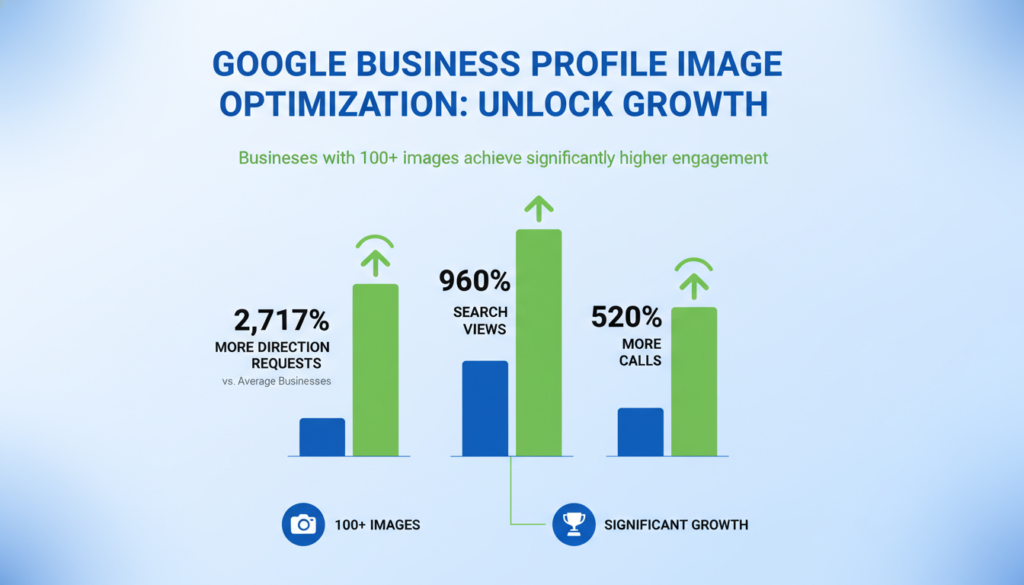
Did you know businesses with optimized images on their Google Business Profile receive 42% more direction requests and 35% more website clicks? Your profile’s visual elements create crucial first impressions that can either attract potential customers or send them scrolling past. In today’s competitive local search landscape, properly optimized images aren’t just nice to have—they’re essential for standing out and driving real business results.
This comprehensive guide will walk you through everything you need to know about optimizing images on your Google Business Profile. From technical specifications to strategic content choices, you’ll learn actionable steps to transform your business’s digital storefront into a customer-attracting powerhouse.
Why Image Optimization Matters for Your Business
Your Google Business Profile serves as your business’s digital storefront. When potential customers search for services you offer, your profile images create that crucial first impression that can make or break their decision to choose your business.
According to Google’s own data, businesses with complete profiles including high-quality images:
- Receive 42% more requests for directions
- Get 35% more clicks to their websites
- Are 70% more likely to attract location visits
Beyond these impressive statistics, optimized images benefit your business in several key ways:
Enhanced Local SEO
Google’s algorithms factor image quality and relevance when determining local search rankings. Properly optimized images help your business appear higher in local search results, increasing visibility to potential customers.
Increased Customer Trust
High-quality, authentic images build credibility with potential customers. They can see exactly what your business looks like, what products you offer, and what experience they can expect before they ever set foot in your location.
Improved User Experience
Clear, relevant images make it easier for customers to find your location, understand your offerings, and make informed decisions about visiting your business.
Competitive Advantage
Many businesses neglect their Google Business Profile images. By optimizing yours, you immediately stand out from competitors who haven’t invested this effort.
Google Business Profile Image Specifications
Before uploading images to your Google Business Profile, it’s essential to understand Google’s technical requirements. Following these specifications ensures your images display correctly and effectively across all devices.
| Specification | Requirement |
| Format | JPG or PNG |
| File Size | Between 10KB and 5MB |
| Recommended Resolution | 720px × 720px |
| Minimum Resolution | 250px × 250px |
| Quality Standard | Well-lit, in focus, minimal editing, representative of reality |
Special Image Types
Logo
Your logo image should be square (1:1 ratio) and represent your brand clearly even at smaller sizes. This appears in the knowledge panel and other compact displays of your business.
Cover Photo
This is the banner image for your profile. Use a 16:9 aspect ratio (1080px × 608px recommended) that showcases your business in an appealing way.
Pro Tip: While Google may automatically crop and adjust your images for different displays, uploading them in the recommended dimensions gives you more control over how they appear.
Essential Image Types for Your Google Business Profile
A complete Google Business Profile should include various image types that collectively tell your business’s story. Here are the key categories of images you should include:

Exterior Photos
Capture your building from multiple angles to help customers recognize and find your location. Include:
- Front entrance view
- Street view showing surrounding area
- Parking area
- Different times of day (especially if appearance changes significantly)
Interior Photos
Show customers what to expect when they step inside your business:
- Reception or waiting area
- Main service or shopping areas
- Unique design elements or atmosphere
- Seating arrangements (for restaurants/cafes)
Product Photos
Showcase what you sell or provide:
- Best-selling products
- New arrivals or seasonal offerings
- Product details and quality features
- Products in use (when applicable)
Team Photos
Humanize your business with images of your team:
- Group staff photo
- Individual team members (with permission)
- Staff in action serving customers
- Behind-the-scenes workplace culture
Service Photos
Document your services being performed:
- Before and after results (when applicable)
- Service process in action
- Tools, equipment, or methods used
- Happy customers receiving service
Special Features
Highlight unique aspects of your business:
- Accessibility features
- Amenities (WiFi, charging stations, etc.)
- Safety measures
- Seasonal decorations or special events
Important: Avoid using stock photos for your Google Business Profile. Google can detect stock imagery and prefers authentic photos that accurately represent your specific business location.
Get Your Free Google Business Profile Image Optimization Checklist
Never miss an important image optimization step again! Our comprehensive checklist walks you through everything you need to optimize your profile’s visual content for maximum impact.
Technical Image Optimization Techniques
Beyond meeting Google’s basic requirements, these technical optimization strategies will ensure your images look professional and perform well:
Image Quality Fundamentals
- Lighting: Ensure photos are well-lit, preferably with natural light. Avoid harsh shadows or overly bright areas that wash out details.
- Focus: Images must be sharp and clearly focused on the subject. Blurry images appear unprofessional and may be rejected.
- Composition: Follow basic photography principles like the rule of thirds. Position key elements off-center for more engaging images.
- Stability: Use a tripod or stabilizer when possible, especially for interior shots that may require longer exposure times.
File Optimization
- Compression: Use tools like TinyPNG or ImageOptim to reduce file size without losing visible quality.
- Dimensions: Resize images to the recommended dimensions before uploading rather than letting Google automatically resize them.
- Format Selection: Use JPG for photographs and PNG for images with text or graphics that need crisp edges.
- Color Accuracy: Ensure colors appear natural and representative of your actual business environment.
“The difference between a good profile and a great profile often comes down to image quality. Customers make split-second judgments based on visual information.”
Equipment Recommendations
You don’t need professional photography equipment to create high-quality images for your Google Business Profile. Here are some practical options:
Recommended Equipment
- Recent smartphone with good camera (iPhone 11+ or equivalent Android)
- Basic tripod with smartphone mount ($15-30)
- Clip-on wide-angle lens for interior shots ($20-50)
- Portable LED light panel for dark environments ($30-60)
What to Avoid
- Very old smartphone cameras (pre-2018 models)
- Heavy filters or excessive editing
- Flash photography in most indoor situations
- Extreme wide-angle lenses that distort proportions
Content Optimization Strategies
Beyond technical quality, the content of your images significantly impacts their effectiveness. Here’s how to optimize what your images actually show:

Authenticity
Authentic images build trust with potential customers. Ensure your images:
- Show your actual business location, not a different branch
- Feature real team members (with their permission)
- Represent current conditions (update if renovations occur)
- Demonstrate actual products or services you offer
Relevance
Every image should serve a purpose in telling your business story:
- Highlight features customers frequently ask about
- Showcase what makes your business unique
- Include seasonal offerings when appropriate
- Demonstrate solutions to common customer problems
Inclusivity
Make sure your images appeal to your entire customer base:
- Show diversity in people featured when applicable
- Highlight accessibility features
- Include images relevant to different customer segments
- Consider cultural sensitivity for your local market
Strategic Content Planning
Develop a strategic approach to what images you capture and upload:
- Storefront with clear signage
- Product displays and merchandising
- Fitting rooms or trial areas
- Special promotions or sales
- Customer service interactions
For Retail Businesses
- Service process in action
- Before/after results
- Equipment or tools used
- Certifications or credentials
- Team members with clients
For Service Businesses
- Signature dishes plated attractively
- Dining area atmosphere
- Outdoor seating options
- Special events or entertainment
- Food preparation (if visible to customers)
For Restaurants/Cafes
SEO and Image Naming Best Practices
The way you name and organize your images can significantly impact their searchability and effectiveness:
File Naming Conventions
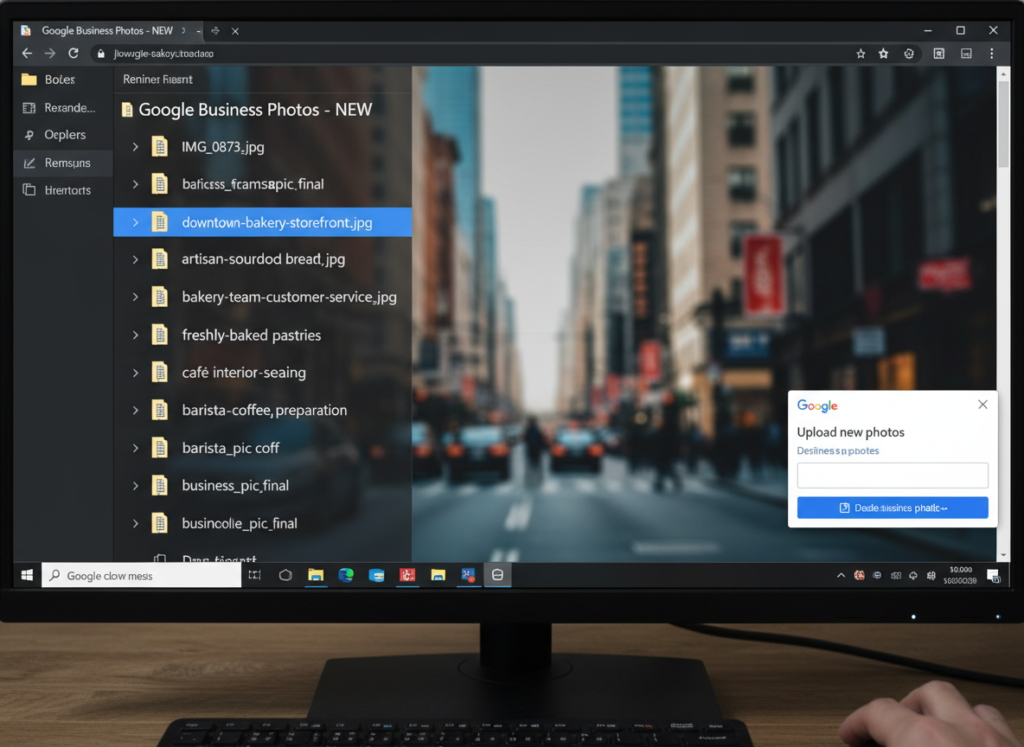
Before uploading images to your Google Business Profile, rename your image files using these best practices:
Do:
- Use descriptive, keyword-rich names (e.g., “downtown-cafe-outdoor-seating.jpg”)
- Include your business name when relevant
- Use hyphens to separate words
- Keep names concise but descriptive
Don’t:
- Use generic names (e.g., “IMG_12345.jpg”)
- Include spaces or special characters
- Stuff with excessive keywords
- Use underscores instead of hyphens
| Poor Filename | Better Filename | Why It’s Better |
| IMG_0123.jpg | main-street-bakery-storefront.jpg | Includes business type and image content |
| photo1.jpg | custom-birthday-cake-chocolate.jpg | Describes specific product with relevant keywords |
| staff_pic.jpg | bakery-team-customer-service.jpg | Describes who is in the image and what they’re doing |
Image Categories and Organization
Google Business Profile allows you to categorize your images, which helps both Google and customers understand their content:
- Select appropriate categories when uploading images (exterior, interior, product, at work, etc.)
- Upload similar images in batches to make categorization more efficient
- Review Google’s auto-categorization of your images and adjust if needed
- Prioritize your cover photo and logo as these have dedicated sections
Pro Tip: While Google doesn’t currently use image metadata (EXIF data) as a confirmed ranking factor, including location data and descriptive metadata doesn’t hurt and may help in the future as algorithms evolve.
Upload and Management Process
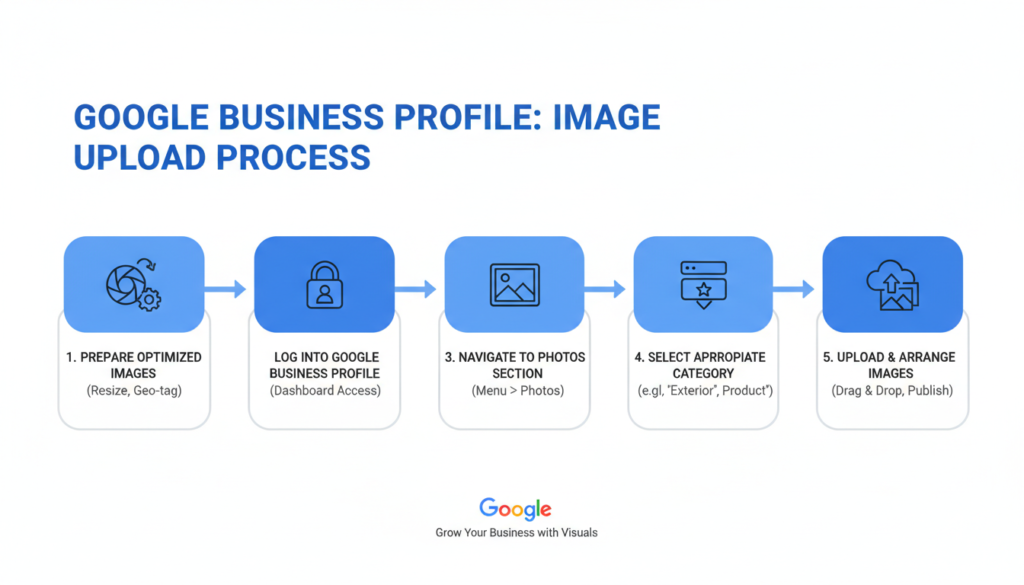
Follow these step-by-step instructions to effectively upload and manage images on your Google Business Profile:
Uploading Images
- Sign in to Google Business Profile at business.google.com or through the Google Maps app
- Select your business location if you manage multiple locations
- Click on “Photos” in the menu
- Select the appropriate category for your upload (Logo, Cover Photo, Interior, etc.)
- Click “Add photos” and select files from your device
- Arrange photos in preferred order if uploading multiple images
- Wait for processing (typically 24-48 hours for approval)
Managing Existing Images
Regular maintenance of your image gallery keeps your profile fresh and accurate:
Quarterly Image Audit
- Remove outdated images (old signage, former staff)
- Check that seasonal images are current
- Verify that product images match current offerings
- Ensure all categories have sufficient images
Managing User-Generated Photos
- Regularly review customer-uploaded images
- Flag inappropriate or inaccurate photos
- Respond to photo-related questions
- Thank customers who share positive images
Important: While you cannot directly remove customer-uploaded photos, you can flag inappropriate images for Google’s review if they violate policies or misrepresent your business.
Advanced Image Optimization Strategies
Take your Google Business Profile images to the next level with these advanced strategies:

Leveraging User-Generated Content
Customer-uploaded photos can significantly enhance your profile’s authenticity and appeal:
Encouraging Customer Photos
- Create in-store signage with QR codes linking to your Google profile
- Include photo requests in post-purchase emails
- Run photo contests with small incentives
- Train staff to politely suggest customers share their experience
Managing UGC Effectively
- Monitor new customer photos weekly
- Respond to photo-based reviews
- Flag truly inappropriate content
- Use customer photos as inspiration for your own content
Seasonal and Timely Updates
Keep your profile fresh and relevant with timely image updates:
Seasonal Refreshes
Update images to reflect current seasons:
- Holiday decorations or special events
- Seasonal products or services
- Weather-appropriate exterior shots
- Seasonal staff uniforms or themes
Business Changes
Promptly update images when your business changes:
- Renovations or remodeling
- New product lines or services
- Staff changes (especially customer-facing roles)
- New equipment or technology
Special Events
Document special moments at your business:
- Community involvement
- Workshops or classes
- Anniversary celebrations
- Awards or recognition
Using Analytics to Guide Strategy
Google Business Profile provides insights about how users interact with your images:
- Access your photo insights in the Performance section of your profile
- Identify your most-viewed images and analyze what makes them appealing
- Compare your photo quantity and views to competitors in your category
- Create more content similar to your highest-performing images
- Track changes in engagement after implementing optimization strategies
“The businesses that succeed with Google Business Profile images are those that consistently refresh their content and respond to what their analytics tell them about customer preferences.”
Common Image Optimization Mistakes to Avoid
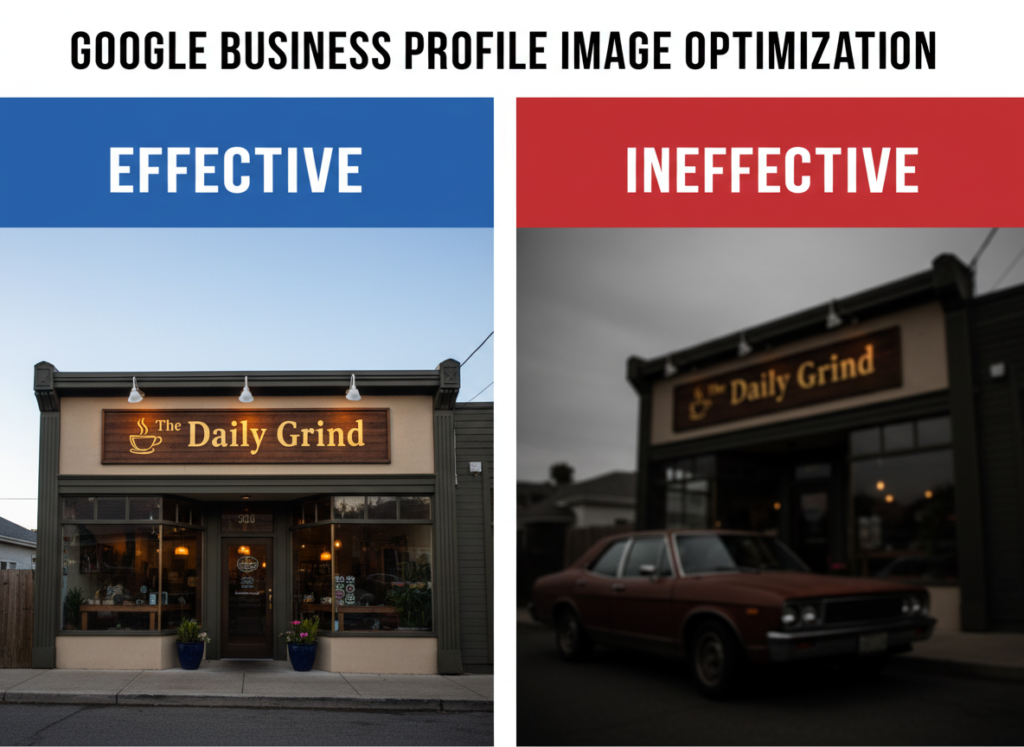
Even with the best intentions, businesses often make these common mistakes when optimizing their Google Business Profile images:
Best Practices
- Using authentic, recent photos of your actual business
- Uploading high-resolution, well-lit images
- Including a diverse range of image types
- Regularly updating your image collection
- Properly naming files before upload
Common Mistakes
- Using stock photos instead of authentic images
- Uploading blurry, dark, or poor-quality photos
- Focusing only on products, neglecting other categories
- Letting your profile become outdated
- Ignoring customer-uploaded photos
Troubleshooting Common Issues
Why aren’t my images appearing after upload?
Images typically take 24-48 hours for review and processing. If images don’t appear after this timeframe, they may have been rejected for quality issues or policy violations. Check that your images meet Google’s guidelines and try uploading again with improved quality.
How do I remove an outdated or poor-quality image?
For images you’ve uploaded, log into your Google Business Profile, navigate to Photos, find the image, and select “Delete photo.” For customer-uploaded photos, you cannot delete them directly, but you can flag inappropriate images for Google’s review.
Why is Google showing a different cover photo than the one I selected?
Google sometimes overrides your cover photo selection based on what their algorithms determine will be most appealing to users. To increase the chances of your preferred image being displayed, ensure it’s high-quality, relevant to your business, and properly categorized.
Stay Updated with Google Business Profile Best Practices
Google regularly updates features and requirements for Business Profiles. Subscribe to our newsletter to receive the latest optimization tips, feature updates, and local SEO strategies delivered straight to your inbox.
We respect your privacy and will never share your information. Unsubscribe anytime.
Conclusion: Your Path to Google Business Profile Image Success
Optimizing images on your Google Business Profile is not a one-time task but an ongoing strategy that requires attention and regular updates. By following the guidelines in this comprehensive guide, you’ve taken a significant step toward improving your local search visibility and attracting more customers to your business.
Remember that image optimization works best as part of a comprehensive approach to managing your Google Business Profile. Combine your optimized images with accurate business information, regular posts, prompt review responses, and other best practices to maximize your local search performance.
Start implementing these strategies today, and you’ll soon see the difference in how customers discover and engage with your business online. Your Google Business Profile is often the first impression potential customers have of your business—make it count with compelling, optimized images that tell your unique story.
Key Takeaways:
- Follow Google’s technical specifications for optimal display
- Include diverse image types that showcase all aspects of your business
- Use authentic, high-quality photos rather than stock images
- Name files descriptively before uploading
- Update images regularly to keep your profile fresh
- Encourage and monitor customer-uploaded photos
- Use analytics to refine your image strategy over time